

Merging a ticket
1
Open the merge picker
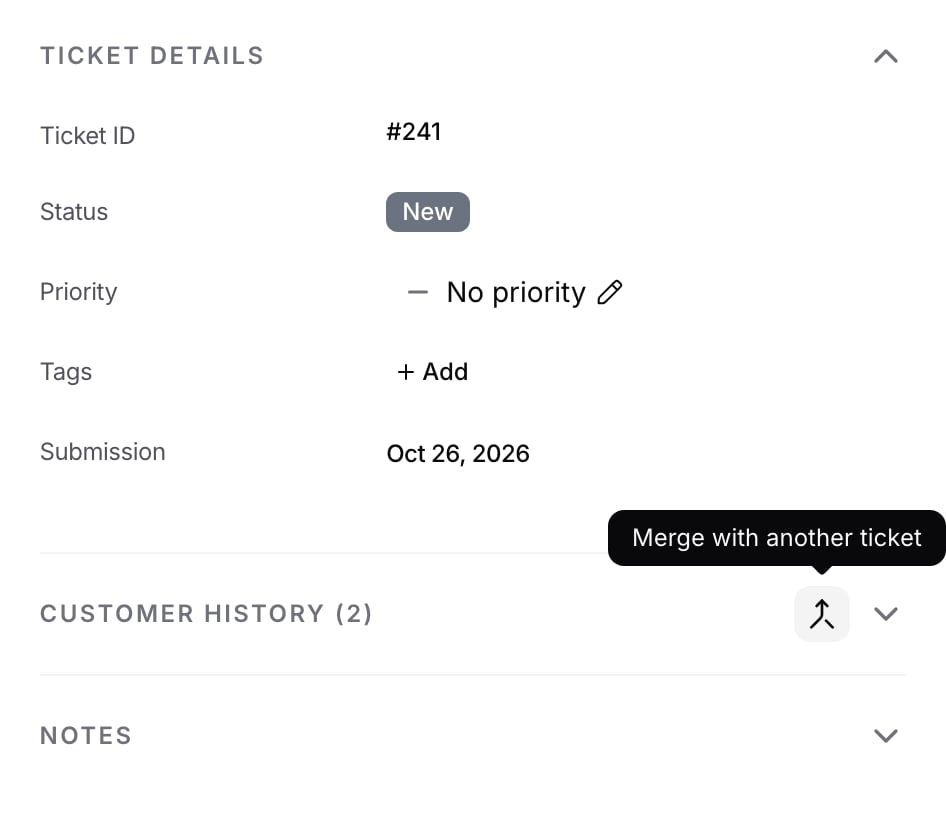
In the right-hand panel, click the merge icon in the Customer History header.
2
Pick the other ticket
The list shows the customer’s 20 most recently active open tickets. Search by ticket number or message text to find others.
3
Choose which ticket to keep
By default, the ticket you have open is merged into the one you pick. Click Swap to keep the open ticket instead.
4
Click Merge
Which tickets can be merged
Both tickets must belong to the same customer, and the ticket you keep must be open. A ticket that was already merged cannot be merged again, and nothing can be merged into it.
On WhatsApp, Messenger, and Instagram, keep the ticket for the customer’s current conversation and merge older tickets into it.
Chat bubble visitors type their own email address, so two tickets with the same unverified address may come from different people. Check both tickets before merging.
What happens to the merged ticket
It moves to your default closed status, or keeps its status if it was already closed. After that it can only move between closed statuses, and bulk reopening skips it. Agents can add notes to it but cannot reply. When the customer replies to the merged ticket’s email thread, the reply goes to the ticket you kept, with a note showing which ticket it was sent to. If that ticket is later merged too, replies go to the newest ticket.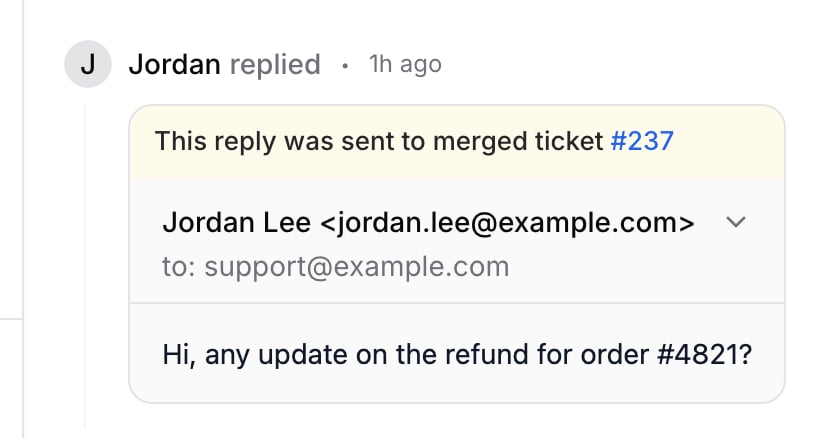
TICKET_MERGED error.
Merging requires the Edit tickets permission.