> ## Documentation Index
> Fetch the complete documentation index at: https://chatbase.co/docs/llms.txt
> Use this file to discover all available pages before exploring further.
# Settings
Open an agent and click **Settings** in the sidebar. The page has eight tabs: **General**, **Voice**, **Email**, **Helpdesk**, **Security**, **Custom domains**, **Webhooks**, and **Notifications**.
## General
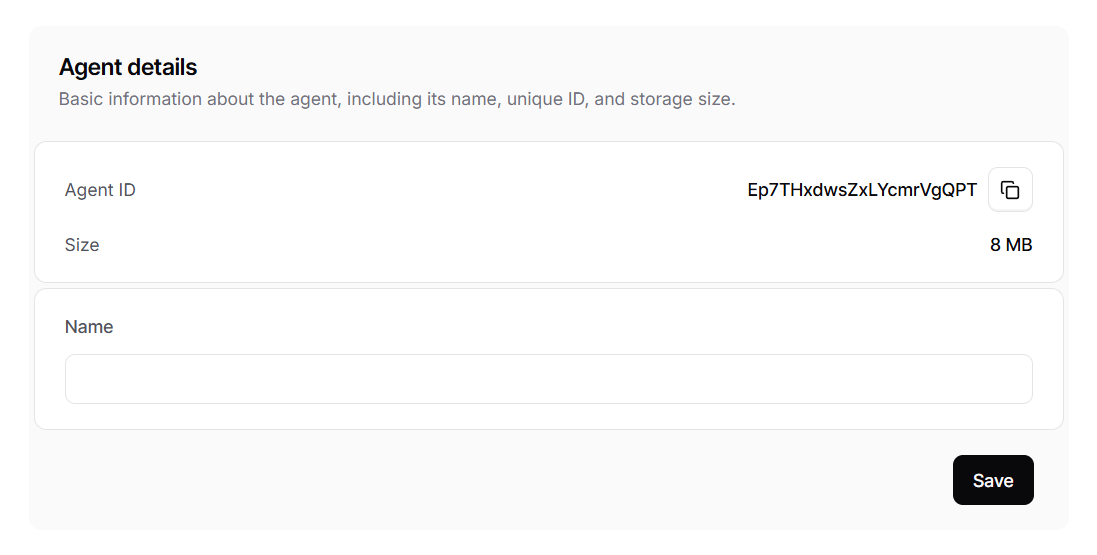
The **General** tab has three cards: **Agent details** (Agent ID, Size, Name), **Credits limit**, and **Danger zone** (Delete all conversations, Delete agent).
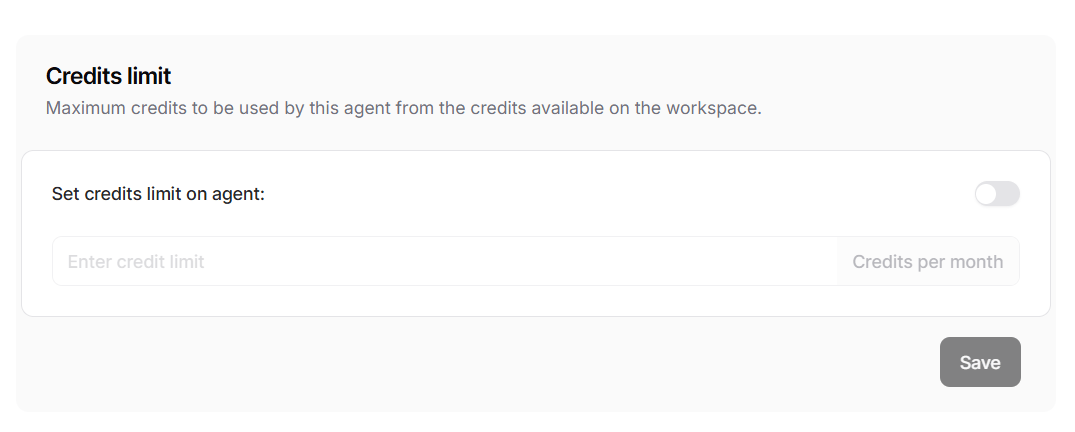
 In the **Credits limit** card, enable **Set credits limit on agent** to cap how many of the workspace’s credits this agent can consume.
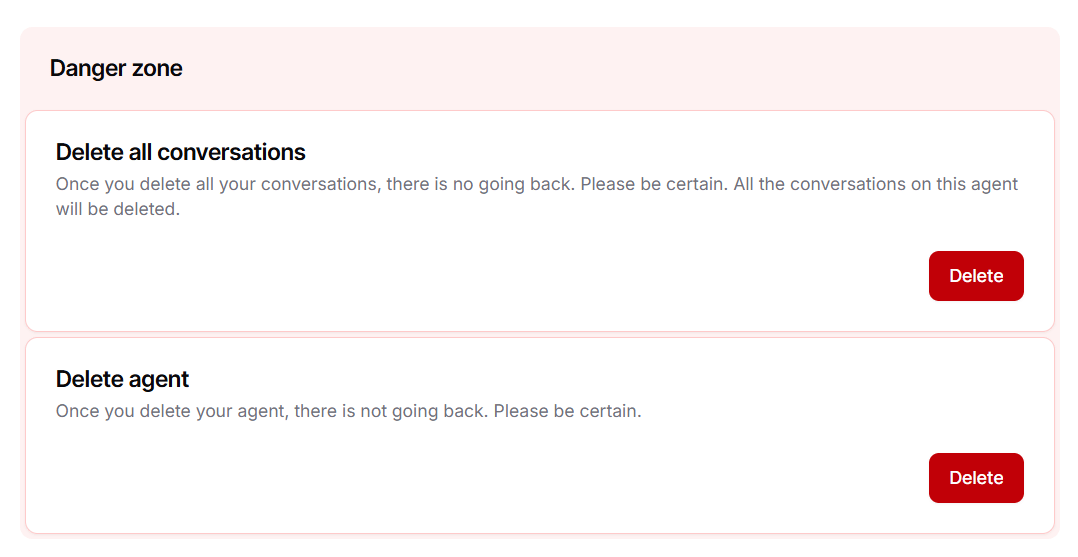
 ***DANGER ZONE***
The actions done in the section aren’t reversible. If you deleted the AI agent or the conversations, you can’t retrieve them moving forward.
***DANGER ZONE***
The actions done in the section aren’t reversible. If you deleted the AI agent or the conversations, you can’t retrieve them moving forward.
 ## Voice
This section allows you to configure how your AI agent sounds and behaves during voice conversations.
### Credit Usage
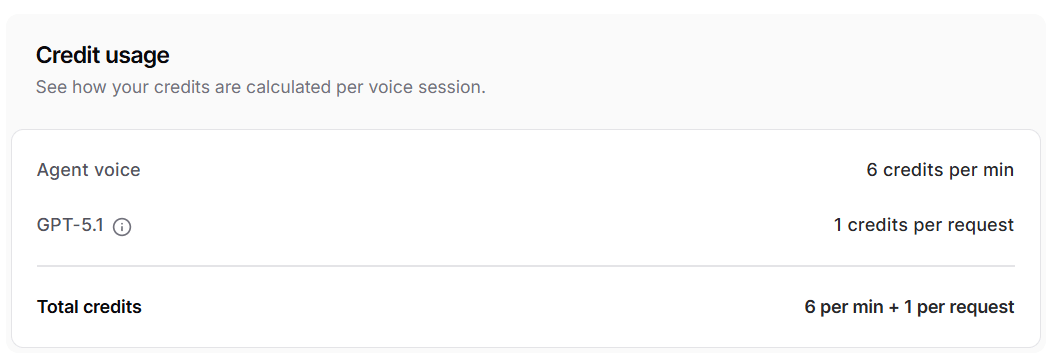
Voice sessions consume credits based on two components:
* **Agent voice**: Every voice session consumes **6 message credits per minute**. This is a per-minute cost regardless of the actual messages exchanged.
* **AI model**: Each response from the AI agent during a voice session consumes message credits based on the model used, just like in text conversations. See the [full list of models and their message credit costs](./build#ai-model).
The total credit cost of a voice session is the sum of both components.
## Voice
This section allows you to configure how your AI agent sounds and behaves during voice conversations.
### Credit Usage
Voice sessions consume credits based on two components:
* **Agent voice**: Every voice session consumes **6 message credits per minute**. This is a per-minute cost regardless of the actual messages exchanged.
* **AI model**: Each response from the AI agent during a voice session consumes message credits based on the model used, just like in text conversations. See the [full list of models and their message credit costs](./build#ai-model).
The total credit cost of a voice session is the sum of both components.
 Suppose your voice agent uses **GPT-5.6 Luna** (1 message credit per request).
If a user has a **10-minute voice call** with **15 AI requests**:
| Component | Calculation | Message Credits |
| ----------------------- | ------------------------------ | --------------- |
| Agent voice | 10 min x 6 credits/min | 60 |
| AI model (GPT-5.6 Luna) | 15 requests x 1 credit/request | 15 |
| **Total** | | **75** |
### Voice Model
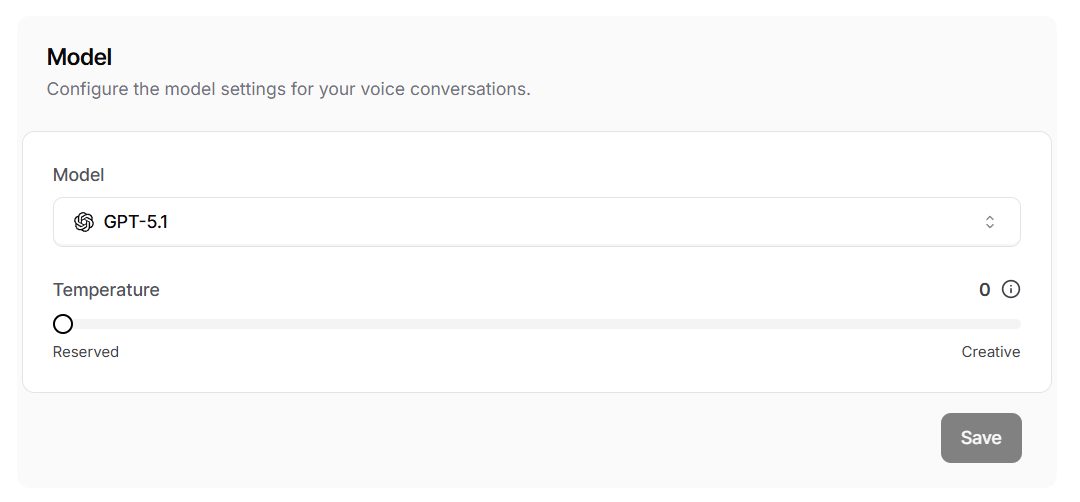
Select the AI model used specifically for voice sessions. This model is separate from the one used for text-based conversations and only applies when users interact with your AI agent through voice.
You can also adjust the **Temperature** to control how creative or reserved the AI agent's responses are during voice conversations.
Suppose your voice agent uses **GPT-5.6 Luna** (1 message credit per request).
If a user has a **10-minute voice call** with **15 AI requests**:
| Component | Calculation | Message Credits |
| ----------------------- | ------------------------------ | --------------- |
| Agent voice | 10 min x 6 credits/min | 60 |
| AI model (GPT-5.6 Luna) | 15 requests x 1 credit/request | 15 |
| **Total** | | **75** |
### Voice Model
Select the AI model used specifically for voice sessions. This model is separate from the one used for text-based conversations and only applies when users interact with your AI agent through voice.
You can also adjust the **Temperature** to control how creative or reserved the AI agent's responses are during voice conversations.
 ### Transcriber
Choose the model used to transcribe user speech during voice conversations.
### Transcriber
Choose the model used to transcribe user speech during voice conversations.
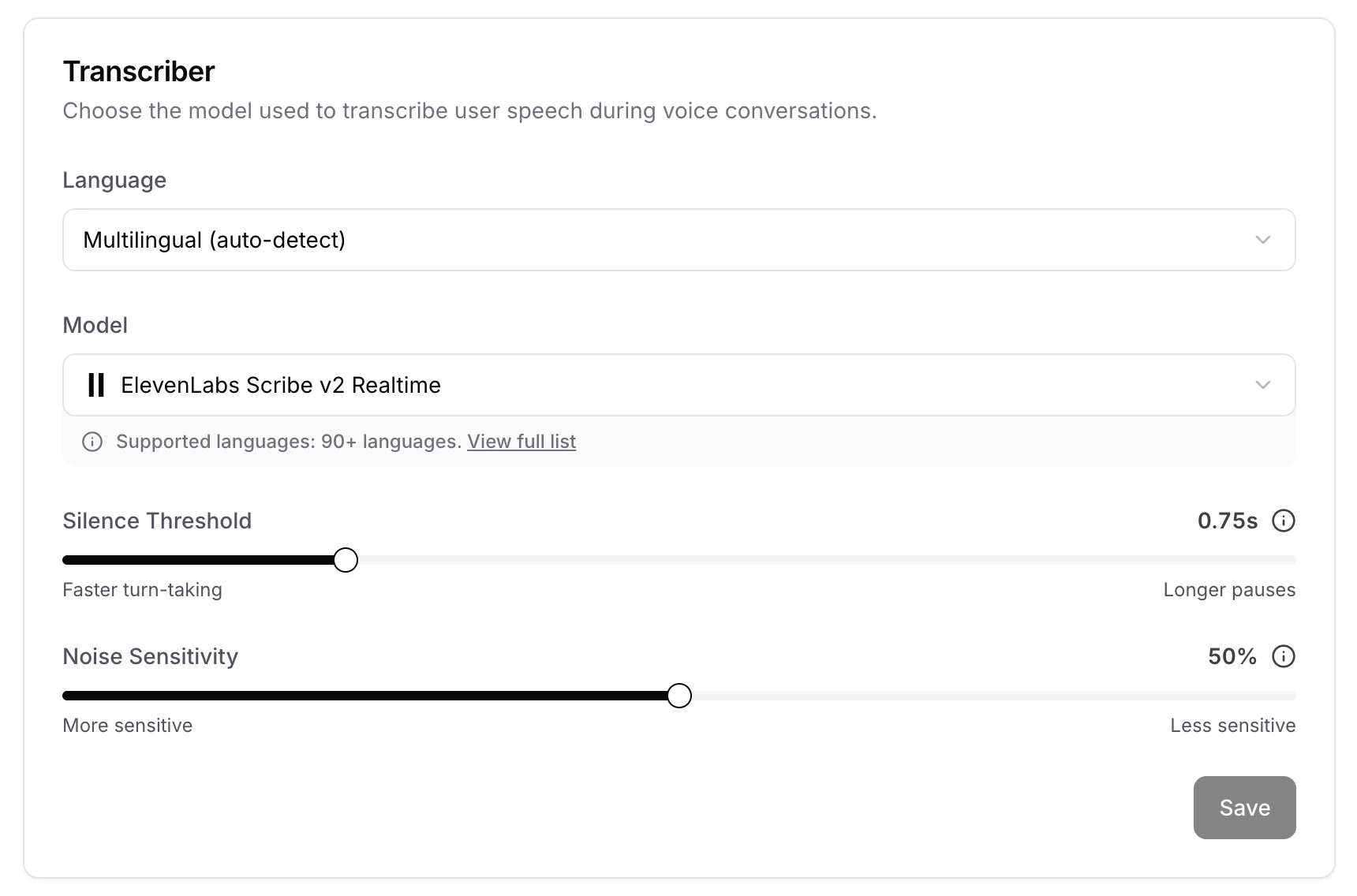 * **Language**: The language used to transcribe user speech. Select **Multilingual (auto-detect)** to let the transcriber detect the language automatically, or pick a specific language to improve accuracy.
* **Model**: The speech-to-text model that converts user audio into text. Each model supports a different range of languages.
* **Silence Threshold**: Seconds of silence before the AI agent considers the user has finished speaking. Lower values switch turns faster but may cut off pauses mid-thought.
* **Noise Sensitivity**: Controls how loud audio must be to count as speech. Lower values pick up quieter speech but are more sensitive to background noise. Higher values filter out noise but may miss soft-spoken users.
### Agent Voice
Choose a voice for your AI agent and fine-tune how it sounds during voice conversations.
* **Language**: The language used to transcribe user speech. Select **Multilingual (auto-detect)** to let the transcriber detect the language automatically, or pick a specific language to improve accuracy.
* **Model**: The speech-to-text model that converts user audio into text. Each model supports a different range of languages.
* **Silence Threshold**: Seconds of silence before the AI agent considers the user has finished speaking. Lower values switch turns faster but may cut off pauses mid-thought.
* **Noise Sensitivity**: Controls how loud audio must be to count as speech. Lower values pick up quieter speech but are more sensitive to background noise. Higher values filter out noise but may miss soft-spoken users.
### Agent Voice
Choose a voice for your AI agent and fine-tune how it sounds during voice conversations.
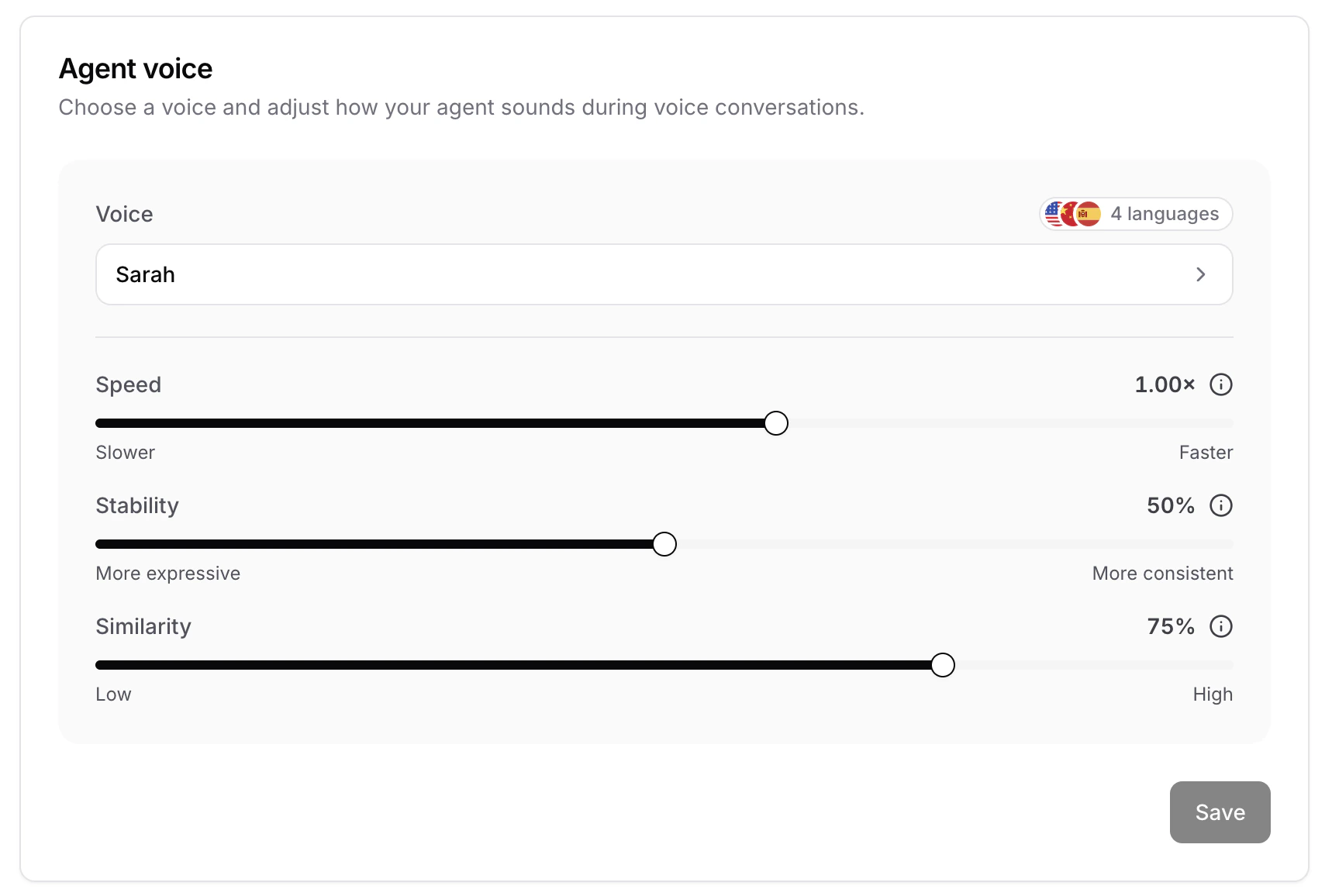 Click on the voice selector to open the voice picker, then fine-tune how the selected voice sounds. The available controls depend on the voice you picked, some voices expose sliders such as speed, stability, and similarity, while others let you describe the desired delivery. A few examples:
* **Speed**: Controls how fast or slow the AI agent speaks. Adjust the slider between slower and faster to match your preferred pace.
* **Stability**: Determines how stable the voice is. Lower values introduce a broader emotional range, while higher values produce a more consistent, monotone delivery with limited emotion.
* **Similarity**: Determines how closely the AI adheres to the original voice when replicating it. Higher values result in a closer match to the selected voice.
* **Voice instructions**: For voices that support it, enter a short prompt describing the tone, style, or dialect you want the AI agent to use when speaking.
Make sure to click **Save** on the voice card to apply your changes.
#### Selecting a voice
The voice picker has two tabs: **All voices** for browsing pre-recorded voices, and **Custom voice** for bringing a custom voice from a supported provider.
Click on the voice selector to open the voice picker, then fine-tune how the selected voice sounds. The available controls depend on the voice you picked, some voices expose sliders such as speed, stability, and similarity, while others let you describe the desired delivery. A few examples:
* **Speed**: Controls how fast or slow the AI agent speaks. Adjust the slider between slower and faster to match your preferred pace.
* **Stability**: Determines how stable the voice is. Lower values introduce a broader emotional range, while higher values produce a more consistent, monotone delivery with limited emotion.
* **Similarity**: Determines how closely the AI adheres to the original voice when replicating it. Higher values result in a closer match to the selected voice.
* **Voice instructions**: For voices that support it, enter a short prompt describing the tone, style, or dialect you want the AI agent to use when speaking.
Make sure to click **Save** on the voice card to apply your changes.
#### Selecting a voice
The voice picker has two tabs: **All voices** for browsing pre-recorded voices, and **Custom voice** for bringing a custom voice from a supported provider.
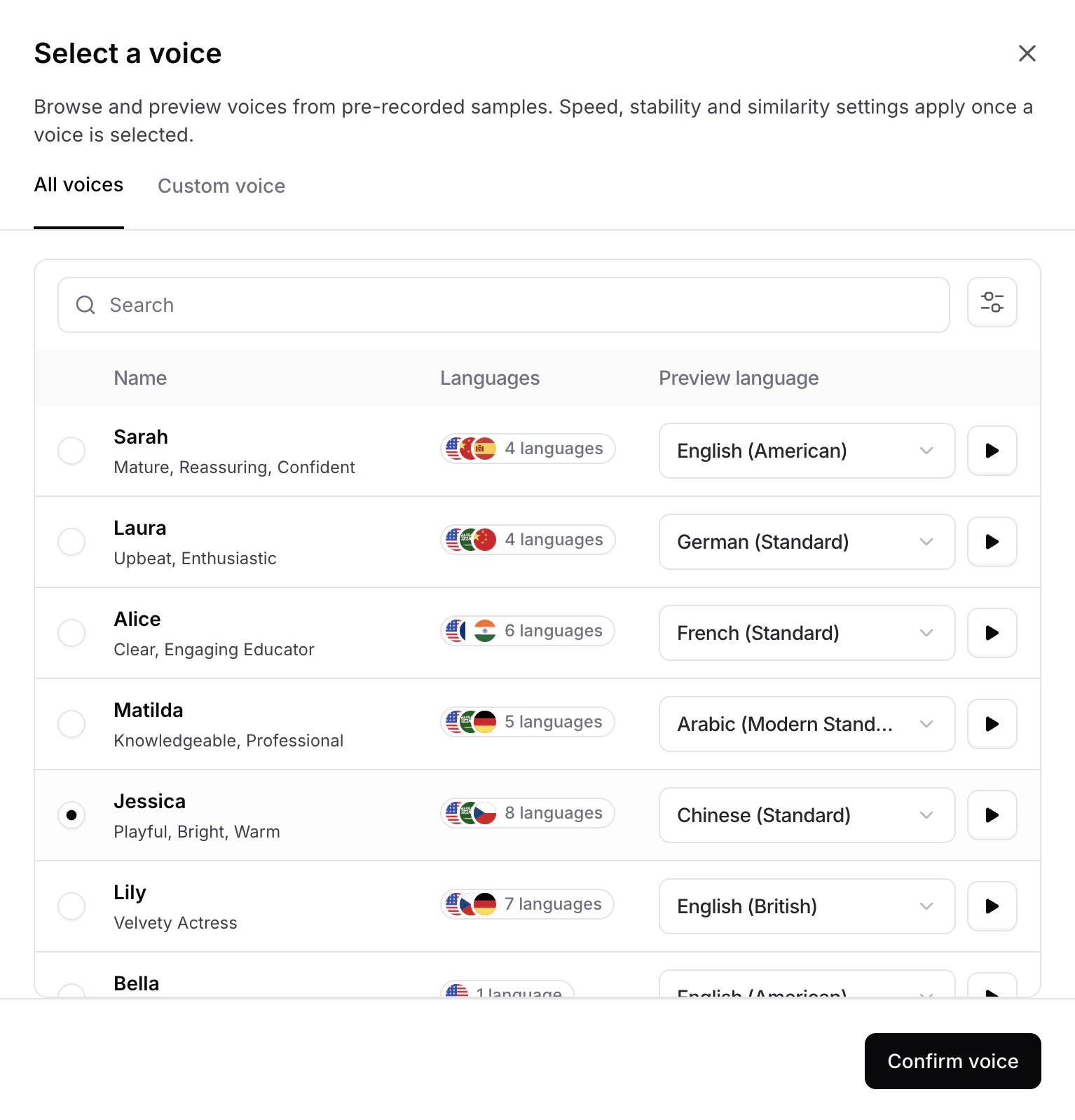 Under **All voices**, you can search by name and filter voices by language, accent, age, and gender. Each row shows the voice's supported languages and a **Preview language** dropdown, pick a language and click the play button to hear a sample of the voice speaking it. Select a voice and click **Confirm voice** to apply it to your agent.
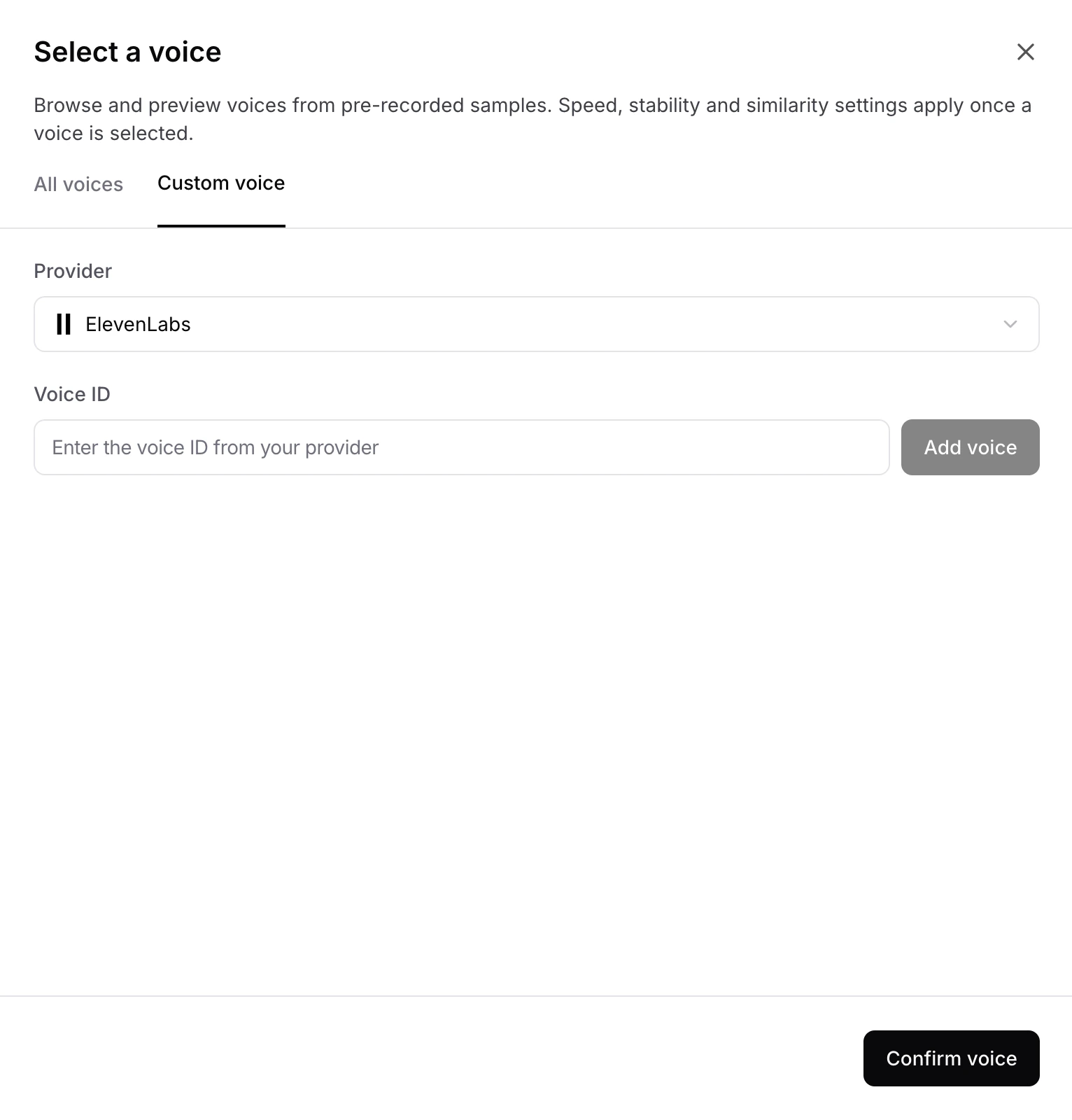 Under **Custom voice**, you can add a custom public voice that isn't in the pre-recorded list by referencing it directly from your provider:
* **Provider**: The voice provider that hosts the custom voice (for example, ElevenLabs).
* **Voice ID**: The identifier of the voice in the provider's account. Paste it in and click **Add voice** to make it available for selection, then click **Confirm voice** to apply it to your agent.
Custom voices only work with **publicly available shared voices** from your provider. Private voices in your provider account are not supported.
#### Using Dialects and Regional Accents
Some voices support custom dialects and accents through Voice Instructions.
Look for voices marked with the ✨ sparkle icon. These voices can adapt their accent, dialect, pacing, and speaking style based on the instructions you provide.
Under **Custom voice**, you can add a custom public voice that isn't in the pre-recorded list by referencing it directly from your provider:
* **Provider**: The voice provider that hosts the custom voice (for example, ElevenLabs).
* **Voice ID**: The identifier of the voice in the provider's account. Paste it in and click **Add voice** to make it available for selection, then click **Confirm voice** to apply it to your agent.
Custom voices only work with **publicly available shared voices** from your provider. Private voices in your provider account are not supported.
#### Using Dialects and Regional Accents
Some voices support custom dialects and accents through Voice Instructions.
Look for voices marked with the ✨ sparkle icon. These voices can adapt their accent, dialect, pacing, and speaking style based on the instructions you provide.
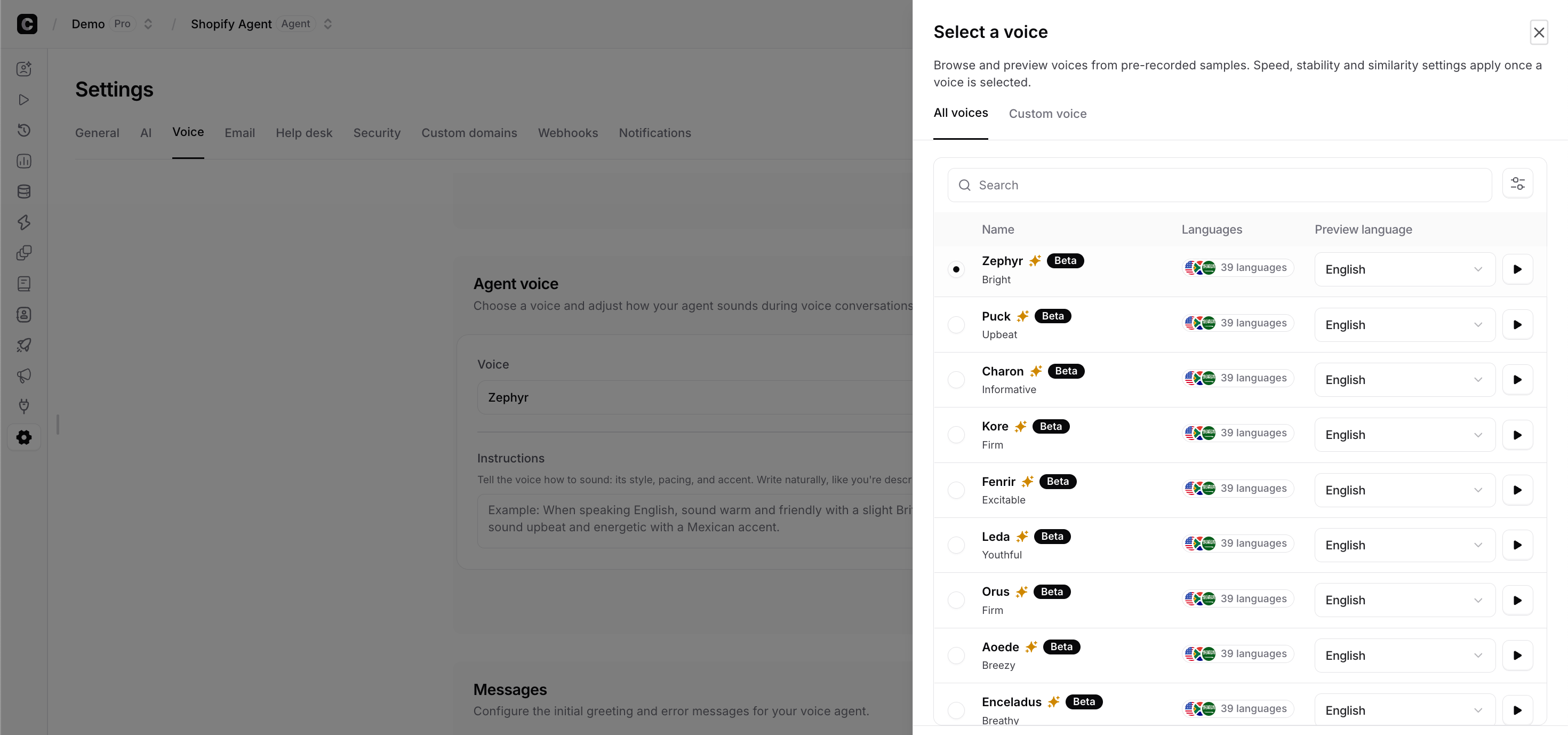 After selecting the desired voice, in the Instructions field, describe how you want the voice to sound.
**Recommended Settings**
* Transcriber: Soniox
* Voice LLM: GPT-5.4 Mini or Gemini 3.5 Flash
### Messages
Configure the initial greeting and error messages for your voice agent.
After selecting the desired voice, in the Instructions field, describe how you want the voice to sound.
**Recommended Settings**
* Transcriber: Soniox
* Voice LLM: GPT-5.4 Mini or Gemini 3.5 Flash
### Messages
Configure the initial greeting and error messages for your voice agent.
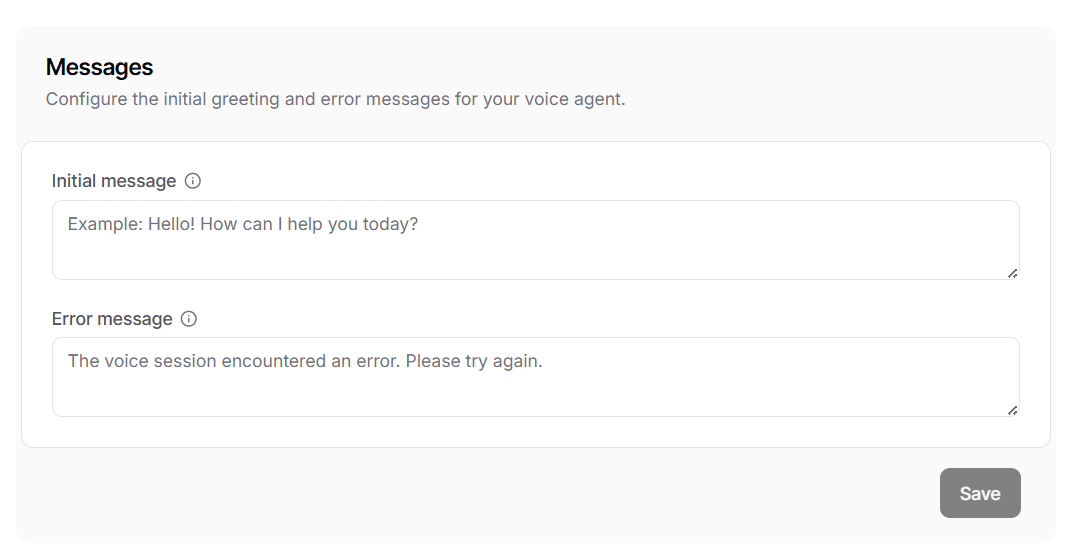 * **Initial message**: The first message the AI agent speaks when a voice session begins. If left empty, the voice agent will wait for the user to speak first.
* **Error message**: The message played if the voice session encounters an error. If left empty, the default error message "The voice session encountered an error. Please try again." will be used.
### Session Configurations
Control how the AI agent handles interruptions, silence, and text input during active voice calls.
* **Initial message**: The first message the AI agent speaks when a voice session begins. If left empty, the voice agent will wait for the user to speak first.
* **Error message**: The message played if the voice session encounters an error. If left empty, the default error message "The voice session encountered an error. Please try again." will be used.
### Session Configurations
Control how the AI agent handles interruptions, silence, and text input during active voice calls.
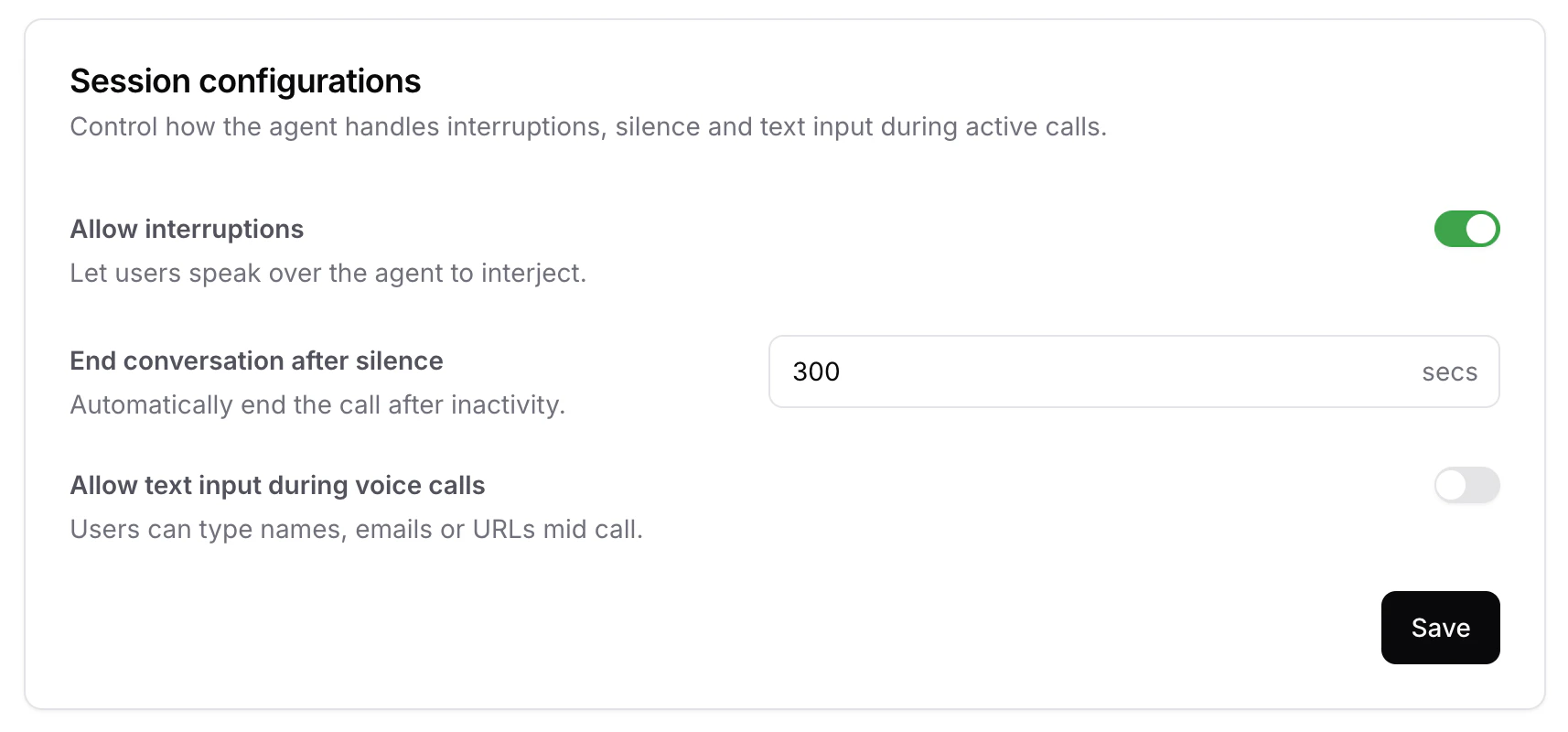 * **Allow interruptions**: When enabled, users can speak over the AI agent to interject mid-response. Disable this if you'd prefer the agent to always finish speaking before listening for the user's next turn. Defaults to **enabled**.
* **End conversation after silence**: The number of seconds of inactivity after which the call is automatically ended. Useful for closing out abandoned sessions and avoiding unnecessary credit usage. Defaults to **300 seconds**.
* **Allow text input during voice calls**: When enabled, users can type messages mid-call alongside speaking. Helpful for entering details that are easier to type than to say, such as names, emails, or URLs. Defaults to **disabled**.
### Recordings
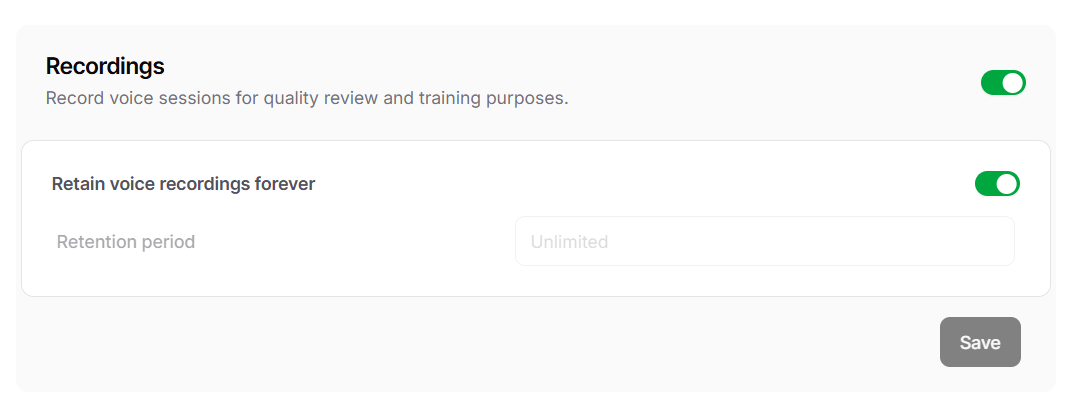
Enable recording of voice sessions for quality review and training purposes. You can also toggle **Retain voice recordings forever** to keep recordings indefinitely, or set a custom retention period.
* **Allow interruptions**: When enabled, users can speak over the AI agent to interject mid-response. Disable this if you'd prefer the agent to always finish speaking before listening for the user's next turn. Defaults to **enabled**.
* **End conversation after silence**: The number of seconds of inactivity after which the call is automatically ended. Useful for closing out abandoned sessions and avoiding unnecessary credit usage. Defaults to **300 seconds**.
* **Allow text input during voice calls**: When enabled, users can type messages mid-call alongside speaking. Helpful for entering details that are easier to type than to say, such as names, emails, or URLs. Defaults to **disabled**.
### Recordings
Enable recording of voice sessions for quality review and training purposes. You can also toggle **Retain voice recordings forever** to keep recordings indefinitely, or set a custom retention period.
 ### Limits
Control session volume and duration to manage costs and performance.
### Limits
Control session volume and duration to manage costs and performance.
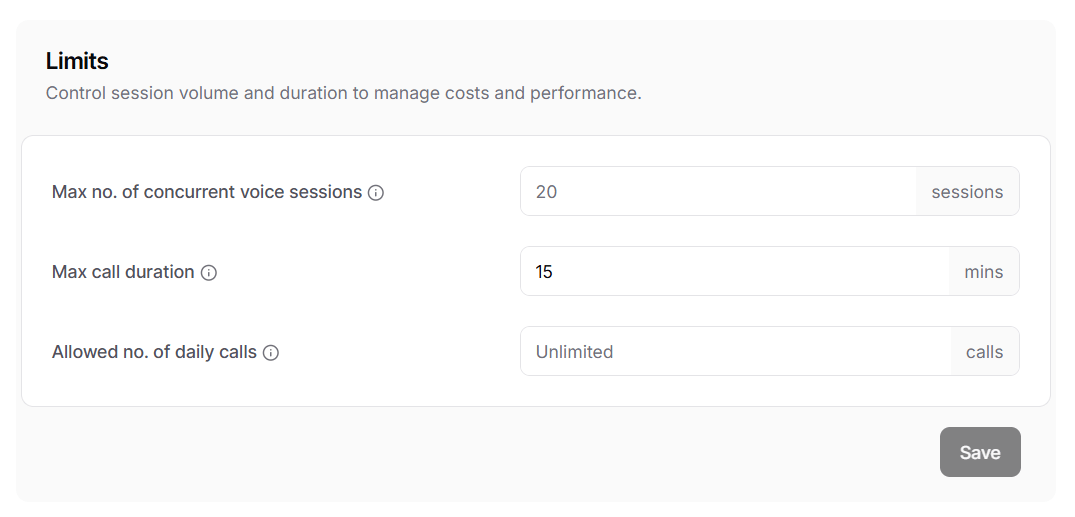 * **Max no. of concurrent voice sessions**: The maximum number of voice sessions that can run at the same time. If left empty, your plan's default limit will apply.
* **Max call duration**: The maximum length of a single voice call in minutes. The default is 15 minutes.
* **Allowed no. of daily calls**: The total number of voice calls allowed each day. If left empty, your plan's default limit will apply.
Your subscription plan enforces account-level limits for daily sessions and concurrent sessions across all your AI agents. You can set agent-specific limits here to further restrict usage for individual agents.
## Email
The **Email** tab holds your agent's dedicated **Agent email address** and the **Email configuration** card, where you add and verify the addresses used to send and receive mail. See [Email settings](/docs/user-guides/chatbot/email-settings).
## Helpdesk
The **Helpdesk** tab has its own sub-navigation: **Email**, **Members**, **Teams**, **Scheduling**, **Team routing**, **Ticket statuses**, **Translation**, and **AI draft replies**. See [Helpdesk](/docs/user-guides/chatbot/help-desk/help-desk-overview).
## Security
The **Security** tab holds a single **Rate limit** card. Use it to cap how many messages one device can send to your agent through the chat bubble and iframe over a chosen time period, which helps prevent abuse.
Set **Limit to** *N* **messages every** *N* **seconds**, and write the **Message to show when limit is hit**.
* **Max no. of concurrent voice sessions**: The maximum number of voice sessions that can run at the same time. If left empty, your plan's default limit will apply.
* **Max call duration**: The maximum length of a single voice call in minutes. The default is 15 minutes.
* **Allowed no. of daily calls**: The total number of voice calls allowed each day. If left empty, your plan's default limit will apply.
Your subscription plan enforces account-level limits for daily sessions and concurrent sessions across all your AI agents. You can set agent-specific limits here to further restrict usage for individual agents.
## Email
The **Email** tab holds your agent's dedicated **Agent email address** and the **Email configuration** card, where you add and verify the addresses used to send and receive mail. See [Email settings](/docs/user-guides/chatbot/email-settings).
## Helpdesk
The **Helpdesk** tab has its own sub-navigation: **Email**, **Members**, **Teams**, **Scheduling**, **Team routing**, **Ticket statuses**, **Translation**, and **AI draft replies**. See [Helpdesk](/docs/user-guides/chatbot/help-desk/help-desk-overview).
## Security
The **Security** tab holds a single **Rate limit** card. Use it to cap how many messages one device can send to your agent through the chat bubble and iframe over a chosen time period, which helps prevent abuse.
Set **Limit to** *N* **messages every** *N* **seconds**, and write the **Message to show when limit is hit**.
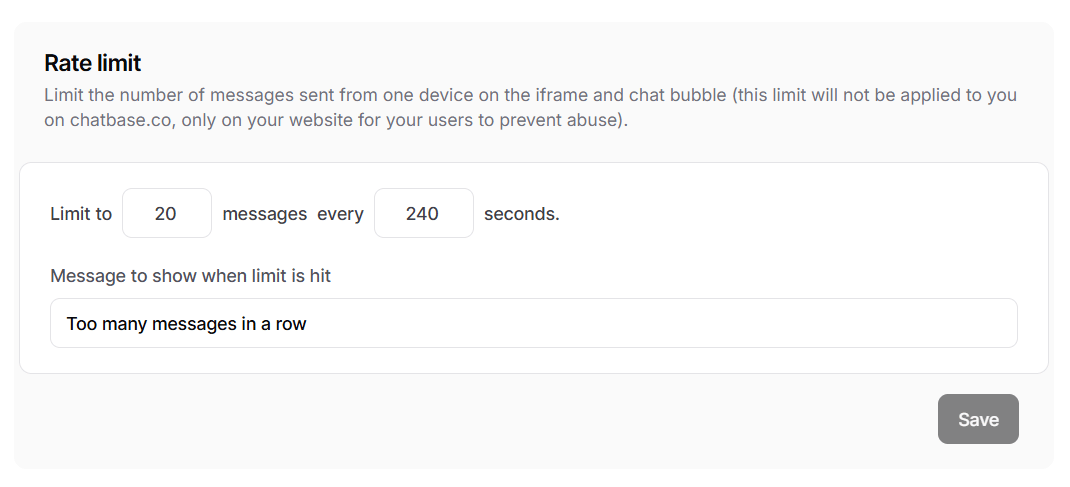 The rate limit applies to your agent on your own site, not to you when testing from chatbase.co. To restrict which domains your agent can load on, see [Allowed Domains](/docs/user-guides/chatbot/channels#allowed-domains) under Channels.
## Custom domains
White label the embed script so it loads from a domain you own instead of a Chatbase URL. See [Custom domains](/docs/developer-guides/custom-domains).
## Webhooks
The **Webhooks** tab has three cards: **Configure** (click **+ Create webhook**), **Events** (tick the events to listen for), and **Endpoints** (the URL that receives them). Existing endpoints are listed below with the events each one subscribes to.
The rate limit applies to your agent on your own site, not to you when testing from chatbase.co. To restrict which domains your agent can load on, see [Allowed Domains](/docs/user-guides/chatbot/channels#allowed-domains) under Channels.
## Custom domains
White label the embed script so it loads from a domain you own instead of a Chatbase URL. See [Custom domains](/docs/developer-guides/custom-domains).
## Webhooks
The **Webhooks** tab has three cards: **Configure** (click **+ Create webhook**), **Events** (tick the events to listen for), and **Endpoints** (the URL that receives them). Existing endpoints are listed below with the events each one subscribes to.
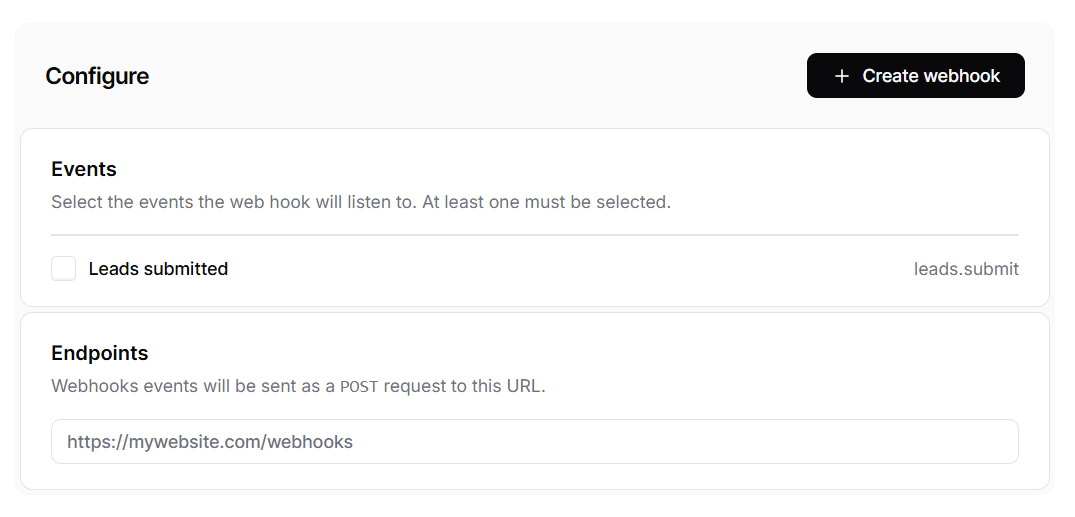 The webhook sends a POST request to your chosen endpoint, which you can use to automate workflows with third-party tools.
Lead submission webhooks are configured on the action itself, not here. Open your **Collect Leads** action and use its **Webhooks** tab. See [Collect Leads](/docs/user-guides/chatbot/actions/collect-leads#webhooks).
## Notifications
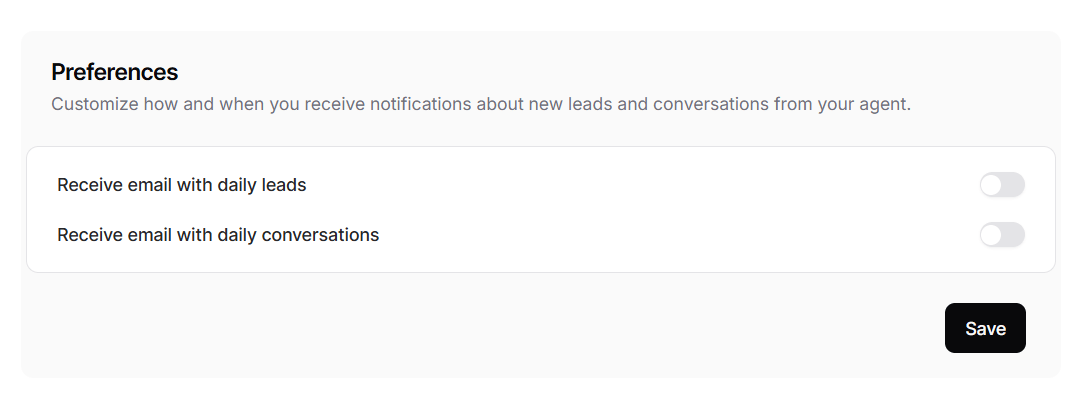
From this page, you can configure the notifications you get from the agent. You can either opt for getting one email per day that contains all the leads submitted for that day. You can also opt for another email that sends you a daily email with the conversations done on that day.
You can add multiple email addresses to receive these emails if needed.
The webhook sends a POST request to your chosen endpoint, which you can use to automate workflows with third-party tools.
Lead submission webhooks are configured on the action itself, not here. Open your **Collect Leads** action and use its **Webhooks** tab. See [Collect Leads](/docs/user-guides/chatbot/actions/collect-leads#webhooks).
## Notifications
From this page, you can configure the notifications you get from the agent. You can either opt for getting one email per day that contains all the leads submitted for that day. You can also opt for another email that sends you a daily email with the conversations done on that day.
You can add multiple email addresses to receive these emails if needed.
 ## Webhooks
On this page, you can configure webhooks that are triggered when a Custom Form is submitted.
When a user completes and submits a Custom Form in your agent, Chatbase automatically sends a POST request to your configured webhook endpoint containing the submitted form data.
You can use this webhook to integrate with third-party services, automate workflows, store submissions in your own systems, or trigger custom business logic whenever a form is submitted.
## Webhooks
On this page, you can configure webhooks that are triggered when a Custom Form is submitted.
When a user completes and submits a Custom Form in your agent, Chatbase automatically sends a POST request to your configured webhook endpoint containing the submitted form data.
You can use this webhook to integrate with third-party services, automate workflows, store submissions in your own systems, or trigger custom business logic whenever a form is submitted.