> ## Documentation Index
> Fetch the complete documentation index at: https://chatbase.co/docs/llms.txt
> Use this file to discover all available pages before exploring further.
# Guardrails
> Protect your AI agent from abuse with rate limits, automatic spam detection, and country blocking.
Go to **Build > Guardrails**. The page has two tabs:
* **Auto protection** holds two cards: **Rate limit** and **Spam detection**. Each card has its own **Save** button, so save after editing one before moving to the other.
* **Blocklists** holds **Country blocking**, which hides your AI agent from visitors in the countries you choose.
Guardrails here are about protecting your AI agent from abuse. To set behavioral rules the AI agent must follow in its replies, such as topics to avoid, use the **Guardrails** section of the instructions editor instead. See [Instructions](/docs/user-guides/chatbot/build#guardrails-instructions).
## Rate limit
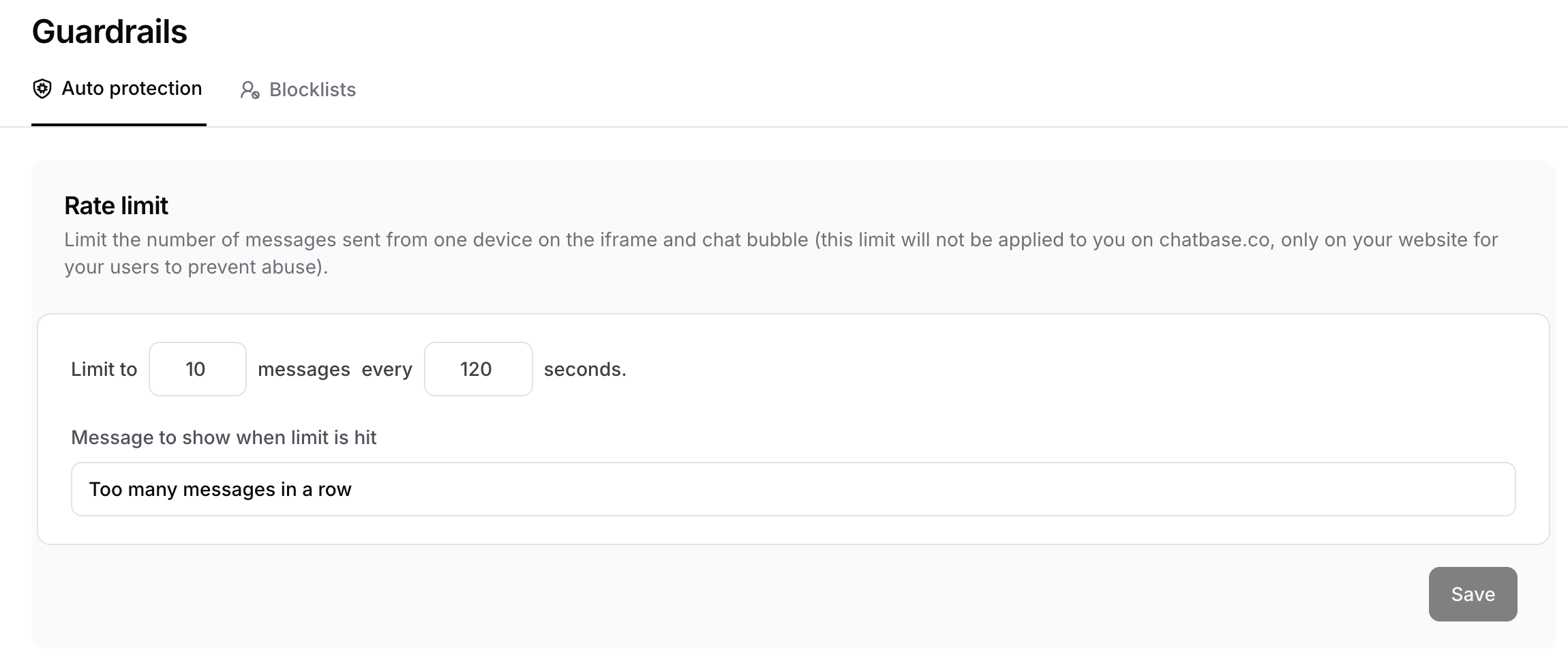
Use **Rate limit** to cap how many messages one device can send to your AI agent through any channel over a chosen time period.
Set **Limit to** *N* **messages every** *N* **seconds**, then write the **Message to show when limit is hit**. Users who exceed the limit see this message instead of a reply until the window resets.
 ## Spam detection
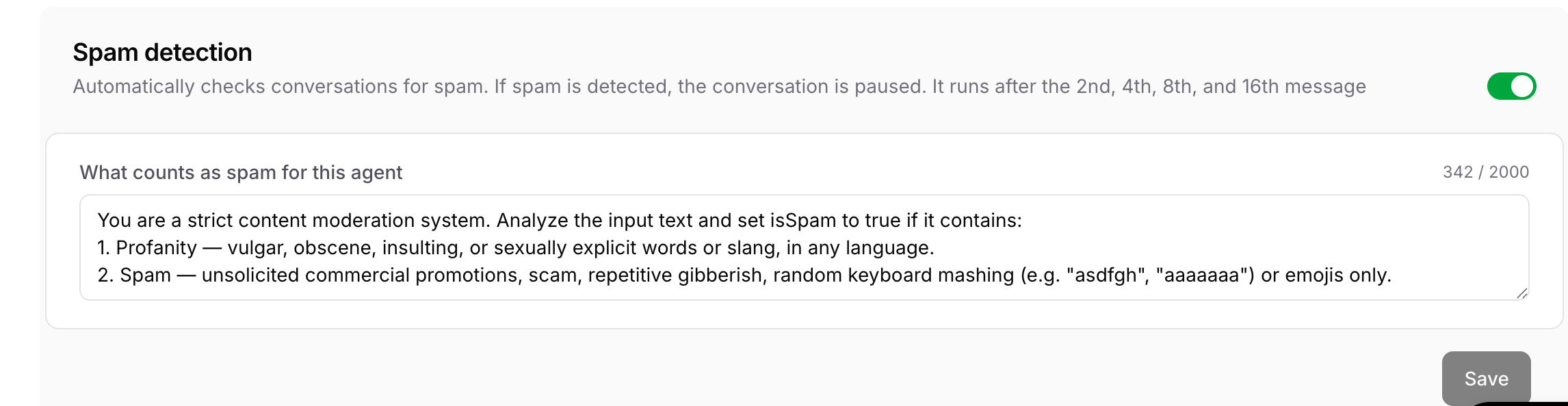
Use **Spam detection** to have Chatbase automatically check conversations for spam. When spam is detected, the conversation is paused and the AI agent stops replying to it. You can also [pause conversations manually](/docs/user-guides/chatbot/activity#pausing-a-conversation) from the chat logs.
Turn the toggle on to enable it. The check runs after the 2nd, 4th, 8th, and 16th user message in a conversation, so it catches abuse early without abusing your credits.
## Spam detection
Use **Spam detection** to have Chatbase automatically check conversations for spam. When spam is detected, the conversation is paused and the AI agent stops replying to it. You can also [pause conversations manually](/docs/user-guides/chatbot/activity#pausing-a-conversation) from the chat logs.
Turn the toggle on to enable it. The check runs after the 2nd, 4th, 8th, and 16th user message in a conversation, so it catches abuse early without abusing your credits.
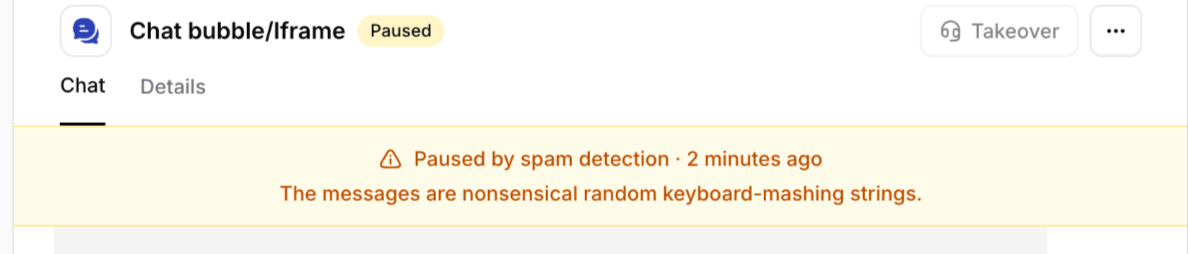
 Here is how a paused conversation from spam detection looks:
 ### Defining what counts as spam
The **What counts as spam for this AI agent** field holds the instructions the spam checker follows, up to 2,000 characters. Chatbase provides a default that flags:
* **Profanity**, such as vulgar, obscene, insulting, or sexually explicit words or slang, in any language.
* **Spam**, such as unsolicited commercial promotions, scams, repetitive gibberish, random keyboard mashing, or emoji-only messages.
Edit the text to fit your use case. For example, you might loosen the profanity rule for a casual brand, or add patterns you see often, such as competitor promotions or repeated links. Be specific about what should and should not be flagged, since anything the checker considers spam pauses the conversation for that user.
Start with the default definition and adjust it after reviewing paused conversations in [Activity](/docs/user-guides/chatbot/activity). Too broad a definition can pause legitimate users who are simply frustrated.
### Supported Channels
Spam detection works across the following channels and experiences:
* **Chat widget** — including the chat bubble, and iFrame
* **Center stage**
* **Help page**
* **API v1 and v2**
* **WhatsApp, Messenger, and Instagram**
* **Playground, Q\&A preview, and Action preview** — these are internal testing experiences and not customer-facing channels
Spam detection is **not supported** on:
* **Slack**
* **Email** — email uses its own spam detection system
* **Zendesk Messaging**
## Country blocking
Use **Country blocking** on the **Blocklists** tab to hide your AI agent from visitors in specific countries. Chatbase detects a visitor's country from their IP address and blocks anyone from a listed country from reaching the AI agent.
### Blocking a country
1. Go to **Build > Guardrails** and open the **Blocklists** tab.
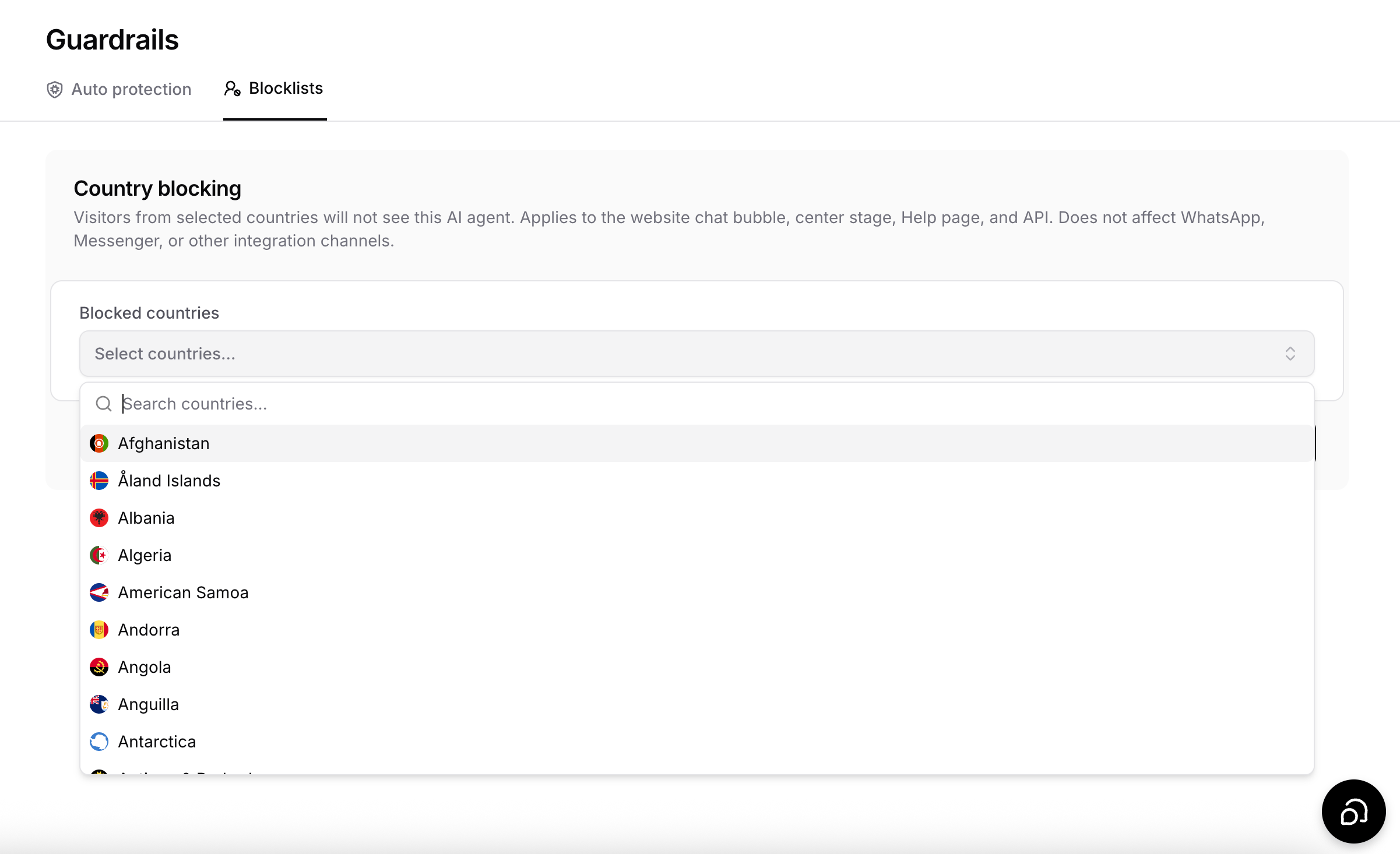
2. Under **Blocked countries**, open the **Select countries...** dropdown and search for a country by name.
3. Select each country you want to block. Selected countries appear as chips below the dropdown.
4. Click **Save**.
### Defining what counts as spam
The **What counts as spam for this AI agent** field holds the instructions the spam checker follows, up to 2,000 characters. Chatbase provides a default that flags:
* **Profanity**, such as vulgar, obscene, insulting, or sexually explicit words or slang, in any language.
* **Spam**, such as unsolicited commercial promotions, scams, repetitive gibberish, random keyboard mashing, or emoji-only messages.
Edit the text to fit your use case. For example, you might loosen the profanity rule for a casual brand, or add patterns you see often, such as competitor promotions or repeated links. Be specific about what should and should not be flagged, since anything the checker considers spam pauses the conversation for that user.
Start with the default definition and adjust it after reviewing paused conversations in [Activity](/docs/user-guides/chatbot/activity). Too broad a definition can pause legitimate users who are simply frustrated.
### Supported Channels
Spam detection works across the following channels and experiences:
* **Chat widget** — including the chat bubble, and iFrame
* **Center stage**
* **Help page**
* **API v1 and v2**
* **WhatsApp, Messenger, and Instagram**
* **Playground, Q\&A preview, and Action preview** — these are internal testing experiences and not customer-facing channels
Spam detection is **not supported** on:
* **Slack**
* **Email** — email uses its own spam detection system
* **Zendesk Messaging**
## Country blocking
Use **Country blocking** on the **Blocklists** tab to hide your AI agent from visitors in specific countries. Chatbase detects a visitor's country from their IP address and blocks anyone from a listed country from reaching the AI agent.
### Blocking a country
1. Go to **Build > Guardrails** and open the **Blocklists** tab.
2. Under **Blocked countries**, open the **Select countries...** dropdown and search for a country by name.
3. Select each country you want to block. Selected countries appear as chips below the dropdown.
4. Click **Save**.
 To unblock a country, click the **X** on its chip and save again.
### Supported Channels
* Website **chat bubble** and **center stage** — these will not be displayed to blocked visitors.
* **Help page** — blocked visitors will receive a `404` error.
* **API** — requests originating from blocked countries will be rejected.
Country blocking does not apply to **WhatsApp, Messenger, or other integration channels**. Conversations through these channels will continue as usual, regardless of the user's location.
To unblock a country, click the **X** on its chip and save again.
### Supported Channels
* Website **chat bubble** and **center stage** — these will not be displayed to blocked visitors.
* **Help page** — blocked visitors will receive a `404` error.
* **API** — requests originating from blocked countries will be rejected.
Country blocking does not apply to **WhatsApp, Messenger, or other integration channels**. Conversations through these channels will continue as usual, regardless of the user's location.